
A transcript is only as useful as what you do with it. Reading a wall of text and hoping to remember the key moments is not a workflow - it's a gamble. FastScribeX's annotation layer transforms your transcript from a passive document into an interactive research tool.
Here's a complete walkthrough of every annotation tool available today.
What Is Transcript Annotation?
Annotation means adding your own layer of meaning on top of the raw transcript - highlights, markers, notes, and filters that make it faster to extract what you need and share it with others. FastScribeX bundles six annotation tools that work together directly inside the transcript view. No plugins, no exports, no switching tabs.
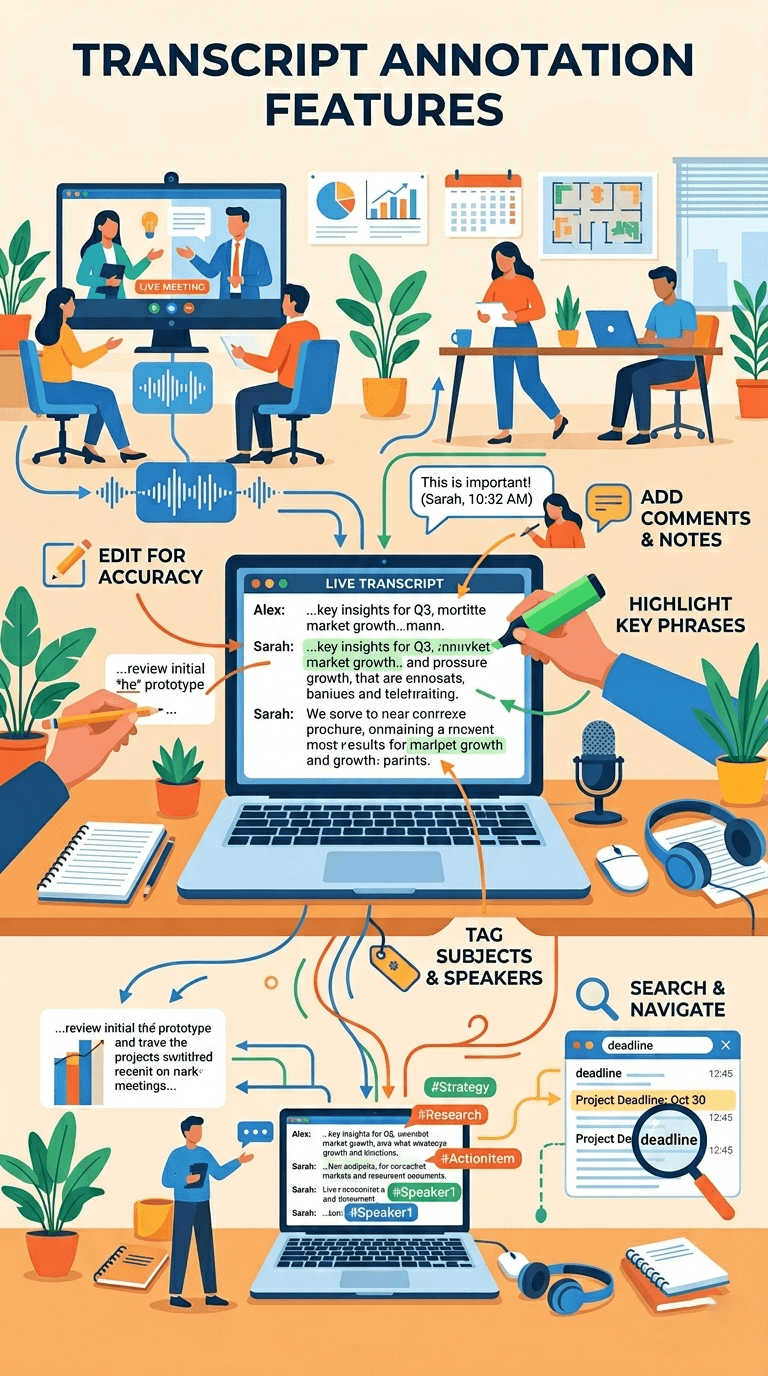
Text Highlights
How it works: Select any passage of text in the transcript and choose from ten colors: yellow, green, blue, pink, purple, orange, red, cyan, lime, or indigo.
Why it matters: Color-coding lets you build a semantic layer on top of any transcript. Common patterns we see users adopt:
| Color | Common Use |
|---|---|
| Yellow | Key decisions or conclusions |
| Green | Action items and commitments |
| Blue | Data, statistics, or quoted figures |
| Pink | Follow-up questions or unclear points |
| Purple | Speaker quotes worth reusing verbatim |
| Orange | Risks, concerns, or blockers |
| Red | Disagreements or escalations |
| Cyan | Background context or definitions |
| Lime | Positive moments, agreements |
| Indigo | Research themes or cross-reference markers |
Best for: Journalists pulling quotes, analysts marking findings, researchers categorizing themes across a long interview.
Bookmarks & Annotations
How it works: Click the bookmark icon on any transcript line to drop a bookmark. You can attach a private note to each bookmark. Hover over a bookmarked line to read your note inline without losing your place.
Why it matters: A bookmark is a permanent pointer to a moment in the recording. Unlike highlights (which mark a passage), bookmarks mark a specific line - the equivalent of a sticky note. They're especially useful for:
- Flagging a moment you need to revisit before finishing ("Come back to check this figure")
- Leaving editorial notes for a colleague reading the same transcript
- Marking where you left off in a long document
Bookmarks sync in real time. Teammates reading the same transcript see your bookmarks as soon as you add them.
Smart Notes
How it works: Click the "Add to Notes" button on any transcript line. The quote is instantly pinned into your notes editor, with a timestamp link attached. Click the timestamp in your notes to jump directly to that moment in the audio playback.
Why it matters: Smart Notes closes the loop between reading and writing. Instead of copying and pasting quotes into a separate document (and losing track of where they came from), you build your notes directly from the transcript. Every quote stays linked to its source timestamp.
| Regular Note-Taking | Smart Notes |
|---|---|
| Copy text - paste - lose time reference | One click - quote + timestamp linked |
| Have to re-watch audio to verify | Click timestamp - jump to exact moment |
| Notes disconnected from source | Notes always connected to transcript |
Export: Your full notes can be exported as DOCX, ready to paste into any word processor or document workflow.
Speaker Filter
How it works: In any multi-speaker transcript, a Speaker Filter panel shows each identified speaker. Click a speaker to filter the entire transcript to show only their lines.
Why it matters: Multi-speaker recordings are dense. If you're researching what a specific person said across a 90-minute panel discussion, scrolling through everyone else's lines is slow. Speaker Filter collapses the transcript to a single voice with one click.
Use cases:
- Interviews: Read only the interviewee's answers, skip the interviewer's questions
- Earnings calls: Filter to the CFO's comments only
- Legal depositions: Isolate a specific witness's statements
- Podcasts: Pull only one co-host's lines for a quote roundup
Speaker Filter works on top of highlights and bookmarks - filtered results retain all your annotations.
Reading Themes
How it works: A theme selector in the toolbar lets you switch the transcript background between eight options: Default, White, Warm White, Cream, Sepia, Mint, Sky, and Lavender.
Why it matters: Long transcription sessions cause eye fatigue, especially under standard high-contrast white backgrounds. Warm tones (Cream, Sepia) reduce eye strain for extended reading. Cool tones (Mint, Sky) are easier in brightly lit environments. It's a small feature with a real quality-of-life impact.
Themes apply only to your view - they don't change how shared links look for other readers.
Export
How it works: Download your transcript and notes in multiple formats from the export menu.
| Format | Use Case |
|---|---|
| TXT | Plain transcript for any text editor or word processor |
| SRT | Subtitle file for video - drag into Premiere, DaVinci, YouTube |
| VTT | Web caption file for HTML5 video players |
| DOCX | Transcript or notes with speaker labels and timestamps |
SRT export detail: The SRT file includes speaker labels and timestamps formatted to the subtitle standard. Upload it directly to YouTube's subtitle editor or any video editing platform.
How It All Works Together
These tools aren't independent - they compose:
- Transcribe a recording
- Highlight key passages while reading
- Bookmark moments that need follow-up
- Pin quotes into Smart Notes with one click
- Use Speaker Filter to read a single voice's full contribution
- Export TXT (full transcript) + SRT (subtitles) + DOCX (annotated notes)
What used to take hours of manual re-listening, copy-pasting, and note organization now takes a single focused reading session.
What's Coming Next
We're actively working on:
- Shared annotation comments - teammates can add their own highlights and notes on the same transcript
- Highlight export - export only the highlighted passages (skip the rest)
- Annotation search - search across all your bookmarks and notes across all transcripts
Get Started
All annotation tools are available on Starter, Pro, and Business plans. Text highlights and bookmarks are visible on the Free plan.
Start annotating your first transcript →
Frequently Asked Questions
Are annotations saved automatically?
Yes. All highlights, bookmarks, and notes are saved automatically and persist across sessions. There is no manual save step.
Can I share annotations with my team?
Shared transcript links show highlights and bookmarks from the owner of the transcript. Full multi-user annotation with per-user layers is on our roadmap.
Does the Speaker Filter affect exports?
Currently, exports include the full unfiltered transcript. Filtered export is a planned feature.
What's the difference between a bookmark and a highlight?
A highlight marks a text passage (can span multiple sentences). A bookmark marks a specific line and can hold a private note. Use highlights for marking content; bookmarks for marking moments that need action.