
Most people use transcription as a one-step process: upload audio, get text, move on. That leaves most of the value on the table. These five techniques get dramatically more out of every transcript - without requiring more time.
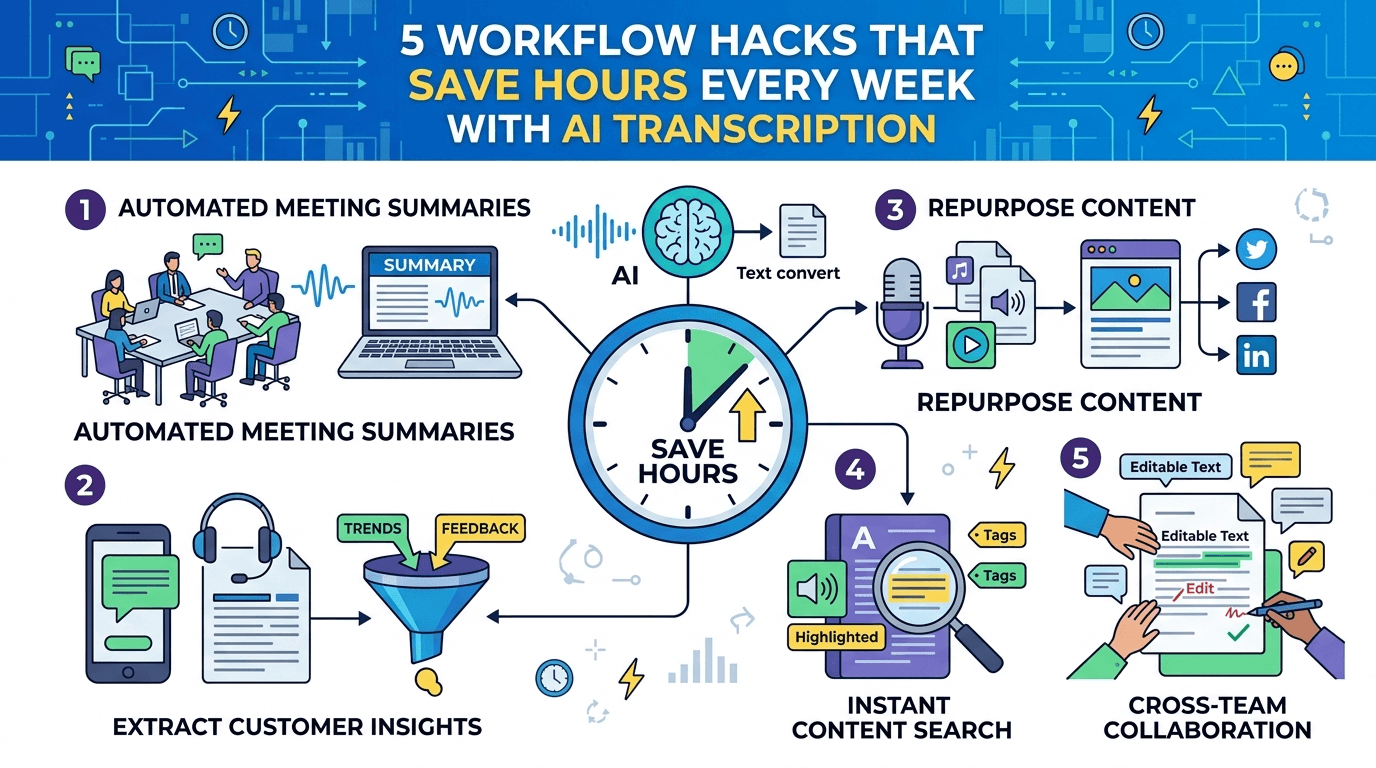
How FastScribeX Works (The Foundation)
Before the hacks, it helps to understand the actual sequence:
- Upload your audio or video file
- Wait for transcription to complete (typically ~1/6th of recording length)
- Open the transcript - audio and text are synced; click any word to seek to that moment
- Generate an AI Summary from the completed transcript
- Annotate - highlights, bookmarks (Marks), notes, tags
- Share or export when ready
The summary and annotations are built on top of the finished transcript. That sequence matters - and unlocks the hacks below.
Hack 1: Scan the AI Summary, Then Bookmark What Matters
The typical workflow: open transcript - read every word - take notes. That's slow.
The smarter workflow: generate the AI Summary first, scan it in 60 seconds, then go into the transcript only for the parts it flagged as important - and bookmark each one.
How to do it in FastScribeX:
- Open the completed transcript
- Click Generate Summary in the AI Summary tab
- Scan the key decisions, action items, and open questions (usually 60 seconds)
- Switch to the transcript view and find each moment the summary mentioned
- Click the bookmark icon on that segment to add a Mark - it appears in your Marks panel with a timestamp
- Click any Mark later to instantly jump back to that exact moment in the audio
Result: A 60-minute meeting that normally takes 45 minutes to "review" now takes 8-10 minutes of focused attention. The summary gives you the map; bookmarks make the important moments instantly accessible later.
Hack 2: Use Color Highlights as a Pre-Writing Pass
If you're writing an article, report, or email based on a recording, don't start from a blank document. Do a highlights pass first.
FastScribeX supports 10 highlight colors - enough to map a clean structure for any document type:
| Highlight Color | Assign It To |
|---|---|
| Yellow | Core thesis / main argument |
| Green | Supporting evidence or data |
| Blue | Direct quotes you'll use verbatim |
| Pink | Counter-arguments or caveats |
| Purple | Background context to develop later |
| Orange | Action items or next steps |
| Red | Critical issues requiring follow-up |
| Cyan | Questions or unknowns |
| Lime | Positive outcomes or wins |
| Indigo | References to follow up on |
Highlight the transcript in one pass (10-15 minutes for a 60-minute recording). You now have a structured skeleton of your document inside the transcript - before you've typed a single word elsewhere.
Writers who do this produce first drafts 40-60% faster because they're assembling pre-organized material, not staring at a blank page.
Hack 3: Use Global Search as Institutional Memory
If you've accumulated even a few weeks of transcripts, you have a searchable organizational memory - most people just don't know how to access it.
FastScribeX's Global Search (accessible from the dashboard sidebar) searches the text of every transcript in your organization simultaneously. Results show the matched text, the file name, the speaker label, and the timestamp - clicking any result takes you directly to that moment in the transcript.
Practical examples:
- Searching "API latency" across three months of engineering stand-ups instantly shows every time the topic came up, who raised it, and when
- Searching a person's name reveals every transcript where they were mentioned
- Searching a product name shows the full history of how discussions evolved over time
Setup tip: Use consistent file naming conventions (e.g., 2026-04-15 Engineering Standup). Global Search returns file names alongside results, so descriptive names make it easier to orient yourself when there are many matches.
Hack 4: Use Tags as a Filing System for Your Transcript Library
Tags in FastScribeX aren't just labels - they're an organizational layer that scales with your library.
Tags are created at the organization level, meaning any team member can use and see the same tag set. You can attach multiple tags to any transcript from the Tags panel in the transcript view.
How to build a useful tag taxonomy:
- Create tags by project:
#product-launch,#q2-planning,#ux-research - Create tags by meeting type:
#client-call,#standup,#interview - Attach tags right after transcription is complete - it only takes a few seconds
Over time, your tag system becomes a filing cabinet. Instead of scrolling through a chronological list of files, filtering by #ux-research instantly surfaces every user interview you've ever transcribed.
Tags support 8 colors (blue, green, amber, red, purple, pink, cyan, lime), which helps distinguish tag categories at a glance.
Hack 5: Save Speaker Profiles for Recurring Participants
If you regularly transcribe meetings with the same people, you shouldn't have to rename "Speaker A" and "Speaker B" every time.
FastScribeX has a Speaker Profiles system built for exactly this:
- After transcription, click on any speaker label in the transcript
- Rename the speaker and choose Save as Profile to store their name org-wide
- Use Apply to All to batch-rename every segment from that speaker in the current transcript in one action
- The next time that person appears in a recording, their profile is available to select immediately - no re-entering names
For teams that meet weekly, this alone saves 5-10 minutes of cleanup per transcript. For researchers or journalists running dozens of interviews over months, it's a qualitative improvement - speaker names are correct from the start, and the transcript is immediately readable.
Bonus: Renamed speakers work with Speaker Filter - filter the transcript to just one person's lines in a single click.
Putting It Together: A Weekly Workflow That Works
| Day | Action | Time |
|---|---|---|
| During each meeting | Record (any recorder) | - |
| Same day | Upload - wait for transcription - generate Summary - scan action items | 8-12 min |
| Same day | Highlights pass + bookmark moments flagged by Summary | 10-15 min |
| After interviews | Speaker Filter to isolate interviewee - export Smart Notes as DOCX | 10-15 min |
| End of week | Global Search to surface recurring themes, decisions, or mentions | 5-10 min |
Total active time for a 4-meeting week: 90-120 minutes instead of 4+ hours.
One More Thing: Set Up Your Color System Once
The biggest friction with annotation is deciding colors on the fly. Fix it upfront: write your color system in a note on your first transcript and pin it as a bookmark at the top. Every subsequent transcript uses the same system - muscle memory kicks in within a week.
Try these workflows on your next recording →
Frequently Asked Questions
How many AI Chat messages do I need per week?
For a team running 4-6 meetings per week with 2-3 questions per transcript, 50 messages/month (Starter plan) is usually sufficient. Researchers querying transcripts daily should consider Pro (250 messages/month).
Can I search across multiple transcripts at once?
Yes - use Global Search from the dashboard sidebar. It searches all transcript text across your organization simultaneously, with results linked directly to the source timestamp. AI Chat is scoped to one transcript at a time and is best for deep questions about a single recording.
Can I use Smart Notes if I don't export?
Yes. Smart Notes are saved in-app and accessible anytime you reopen the transcript. Export to DOCX is optional.
Does Speaker Filter work on recordings with unlabeled speakers?
FastScribeX auto-labels speakers (Speaker A, Speaker B, etc.) without pre-registration. You can rename them after transcription - and save profiles for recurring participants. Speaker Filter works on both auto-labeled and renamed speakers.
Which AI model should I use for long meetings?
For meetings over 90 minutes, Claude Opus 5 tends to produce richer, more comprehensive summaries. For shorter meetings where speed matters more, GPT 5.6 Sol Pro is slightly faster with equally strong action item extraction.